Outlook Microsoft 365 / 2021 / 2019
IMAP is the recommended account type. The settings below are based on the current UwB classic Outlook instructions.
| Account type | IMAP |
|---|---|
| Username | Full email address, e.g. p.czuba@uwb.edu.pl |
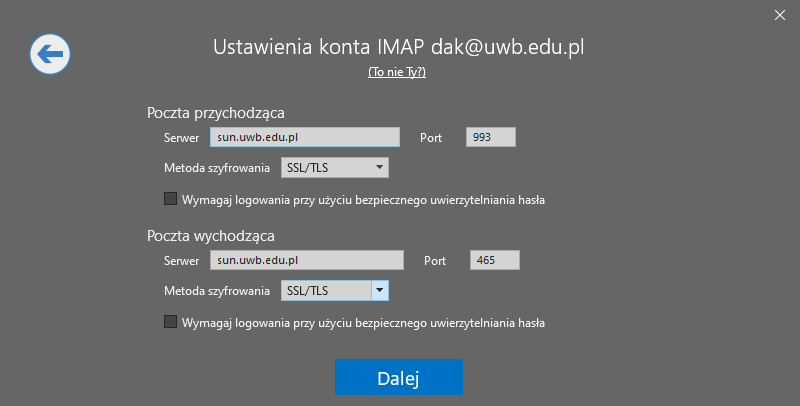
| IMAP | sun.uwb.edu.pl, 993, SSL/TLS |
| SMTP | sun.uwb.edu.pl, 465, SSL/TLS |
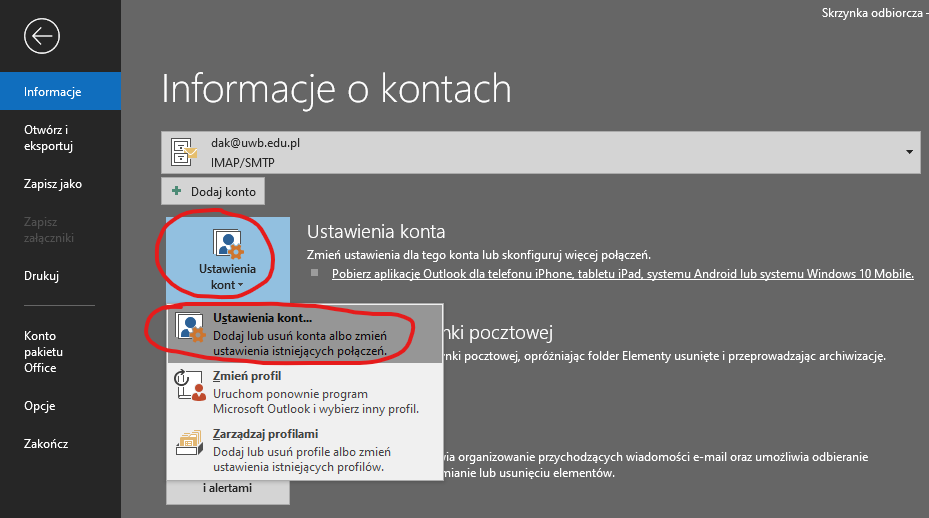
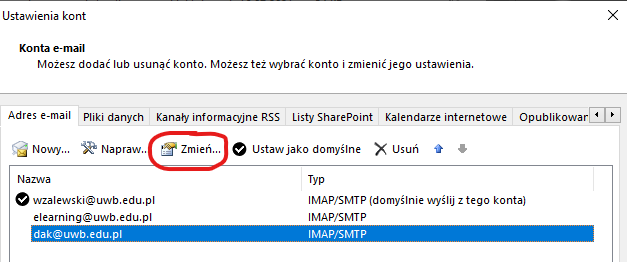
- Start Outlook and open File → Account Settings → Account Settings.
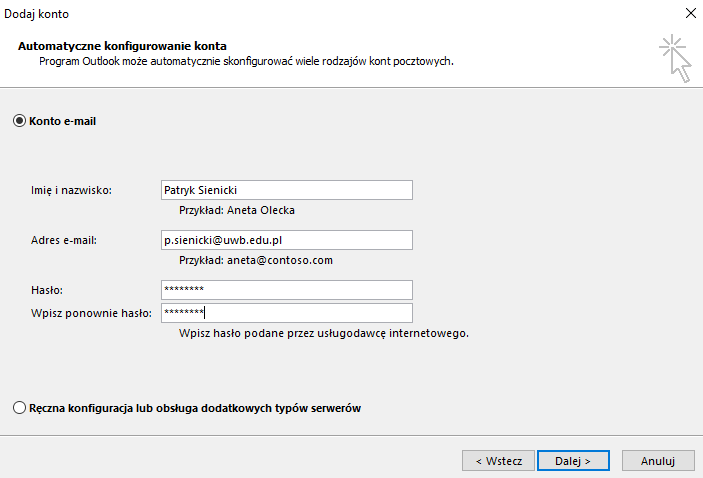
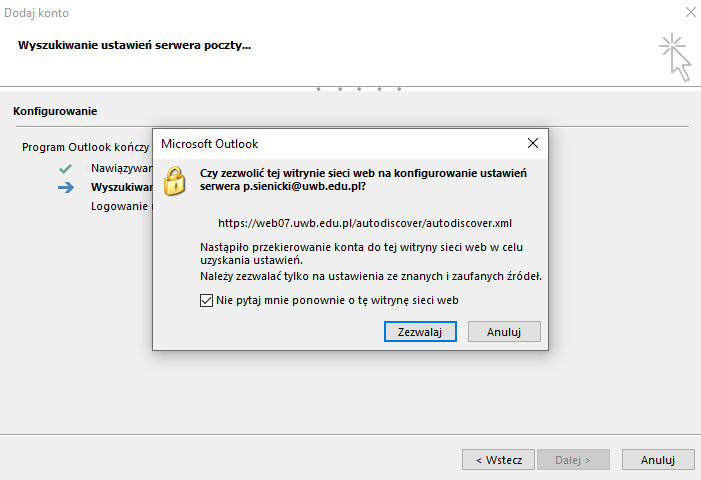
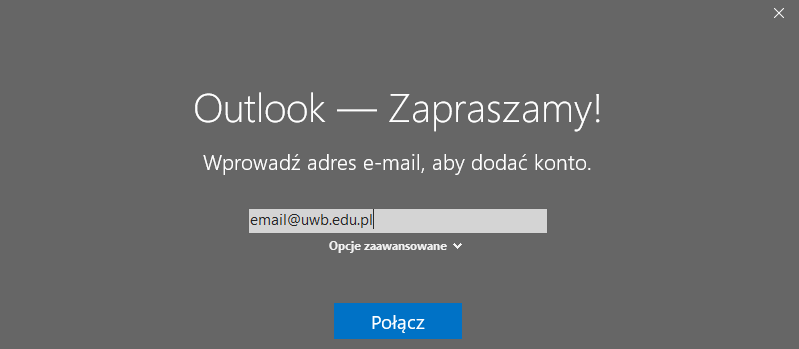
- Select New, enter your @uwb.edu.pl address and choose manual setup if the wizard offers it.
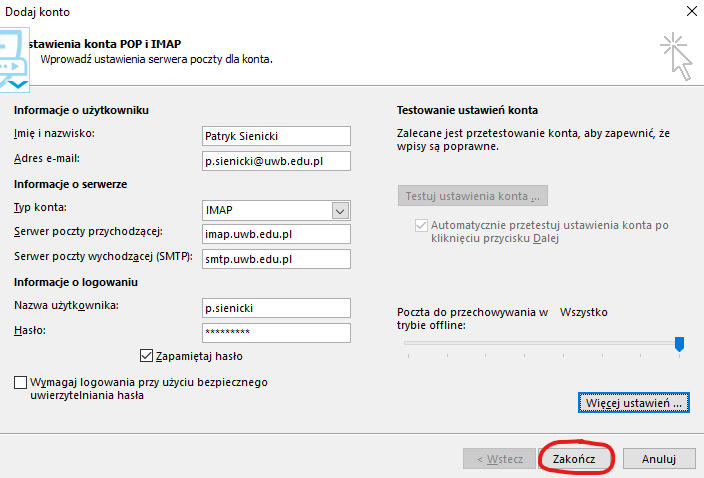
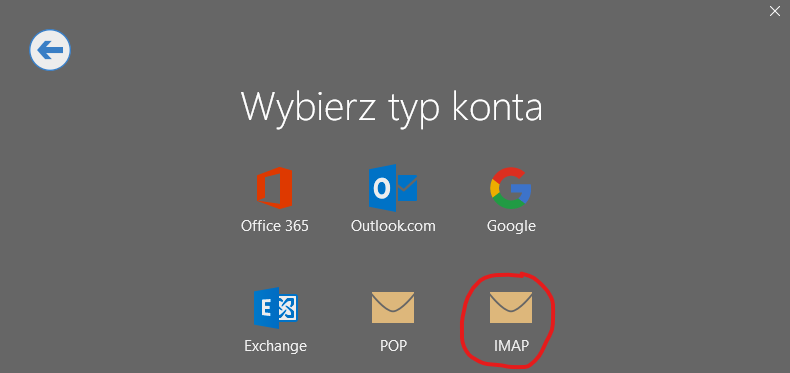
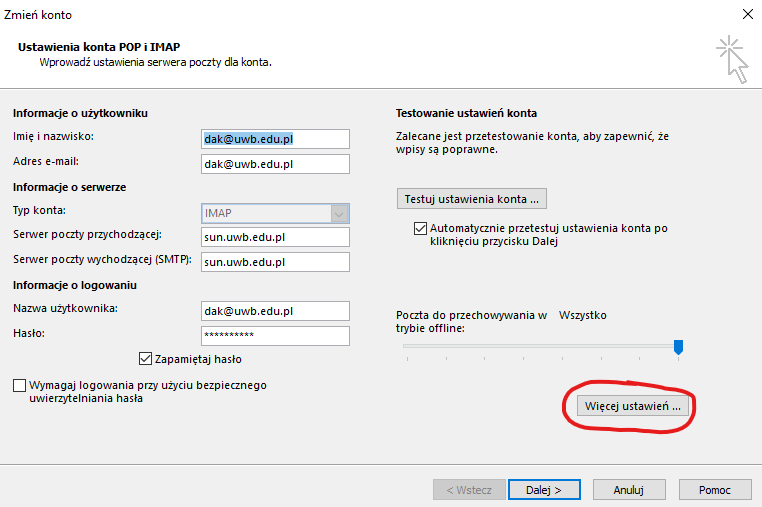
- Select IMAP and use sun.uwb.edu.pl for both incoming and outgoing mail.
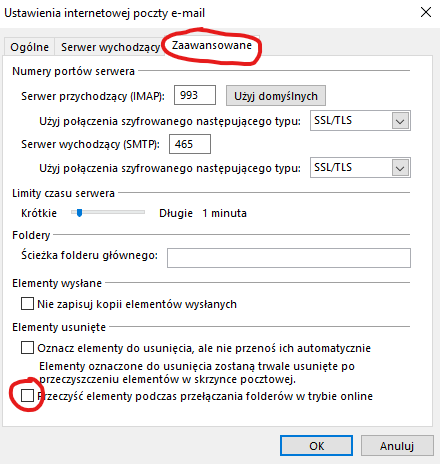
- Set IMAP to port 993 with SSL/TLS. Set SMTP to port 465 with SSL/TLS.
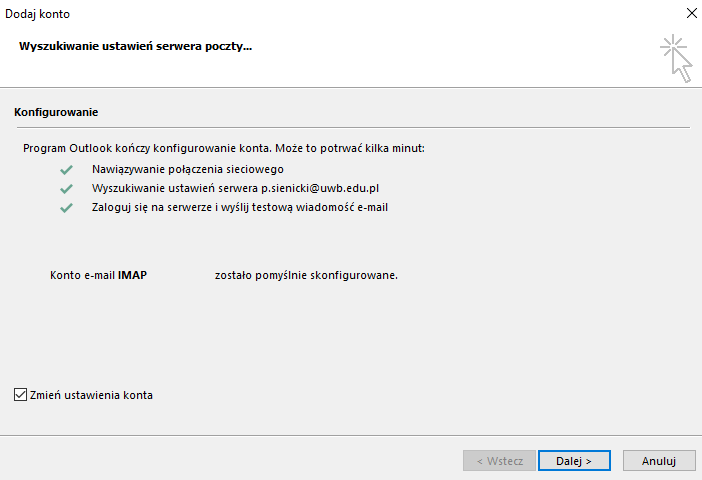
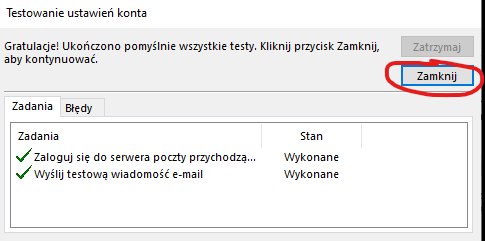
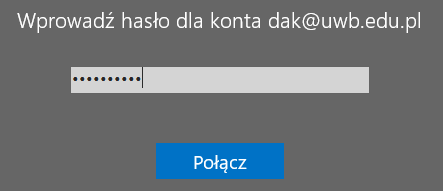
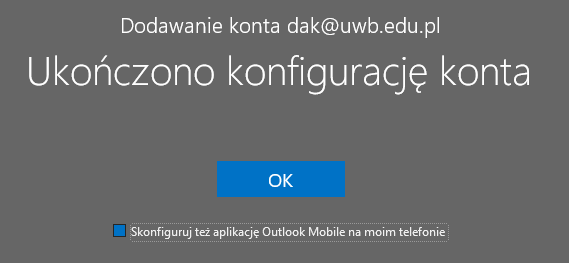
- Use your full email address as the username, enter your mailbox password, and complete the connection test.
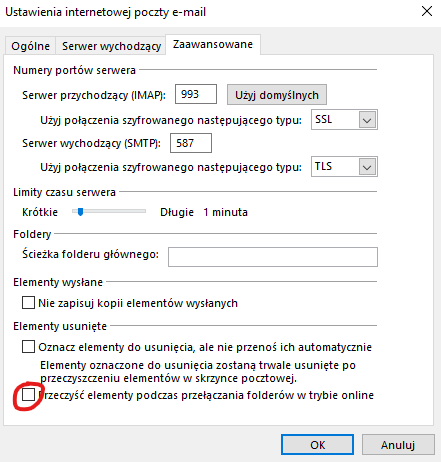
- After the account is added, return to account settings and open Change → More Settings → Advanced.
- Clear the option that purges items when switching folders while online, then save the settings.
New Outlook for Windows
If Advanced settings are available, select IMAP and enter the same values: IMAP 993/SSL/TLS and SMTP 465/SSL/TLS. If your version does not expose all advanced options, use classic Outlook.
Screenshots - Outlook 2019
Screenshots - Outlook 2016 (legacy)